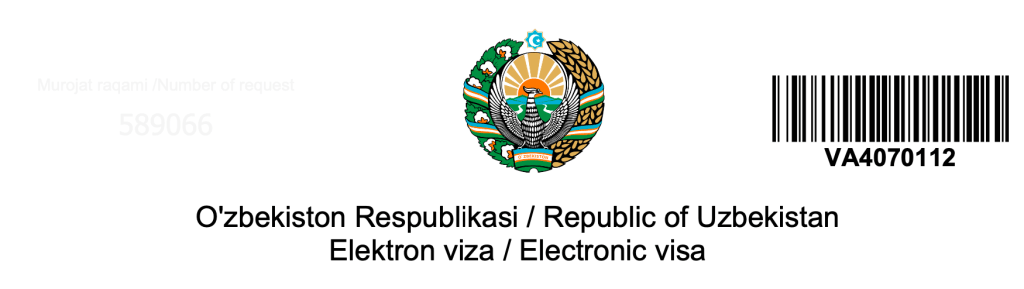
Americans need to obtain a tourist visa to enter Uzbekistan. I did not realize this and was turned away at the border. I recommend coming prepared.
A single-entry Uzbek tourist visa costs $20. It takes, according to the Uzbekistan visa website, three business days. Mine came in five. According to internet forums, they can take as long as three weeks. To be safe, apply ahead of time. Be warned: the process is a nightmare. The website doesn’t work. The photo requirements are non-sensical, and the captchas are inane. I can’t guarantee that this guide will work for you, but here is what worked for me—after at least two hours of struggle. Good luck
The Uzbekistan Visa Process
First, open the E-Visa here. If this link doesn’t work, just google Uzbekistan e-visa application. Click “application for tourist visa” and fill in the information—citizenship, document type, etc.—on the first page. This is where I encountered my first issue. I was trying to fill out the application on my phone. Unfortunately, the website does not seem to support mobile devices. I recommend a computer.
Next, choose your dates. Don’t be too careful—they allotted me one month in a six month window starting the day I submitted my application. Guess when you want to visit just in case. Next comes the passport and personal info. Easy enough…
Then comes the photo section. I recommend warming up with the passport photo. Snap a quick pic—with phone is fine—then find a website like this one where you can resize the KB of the photo. Set it to a number under 1,000 (like 997), download it, click explorer in blue, and upload it.
Next, the personal photo. This one is a multi-step process.
- Take a photo of your face from the shoulders up with a neutral background.
- Head to a website like this one that can add a white background to your photo for free. Upload it, get the white background, then download it again.
- Get our your phone and download “Passport Photo – ID Photo App” from Yarsa Labs. Send yourself the photo—now with a white background—and open the now downloaded app. Click “new photo,” choose “Uzbekistan” from the drop-down list, click “gallery,” and select your photo. Click “start editing” and continue with ads. Upon completion of the ad, click through the orientation and brightness settings and set the face dimensions. When you finish, watch another ad to download the image. Be sure you do so as a .jpg, as .pngs are rejected by the visa website.
- Send the photo back to your computer. Open this website to set the DPI as a last step. Change it to 300, then download the photo (again as a .jpg).
- Last, change the name of the photo to something consisting of lowercase letters and ending in .jpg (I used uzbek.jpg and it worked).
- Upload the photo, fill in the captcha, and pray. Hopefully it takes you through to the payment page.
Possible Errors
If you enter the captcha wrong the first time, you might have to go back through the whole process. Same with the photo. If it does not work the first time, it will not work even with a correct photo. If it doesn’t work, your best bet is to start over.
There is a chance that you can go through everything I said in this guide and it will still not work. If this happens, I’m not sure what to say. Just keep trying. It took me at least two hours of following this Reddit thread closely.
The Wait
Hopefully the visa comes on time. If it doesn’t, there are a number of differnt phone numbers online that you could try. I was unable to reach any of these, unfortunately. Hopefully it takes just three days.
Good luck!
 Wide Open Road